
Advertisement
Voice Access: How to Control Your Android Phone Using Just Your Voice
Free, official, and takes about two minutes to set up
Google's Voice Access lets you control your entire Android phone hands-free — open apps, scroll, type, tap buttons, and navigate menus using only your voice. It's a free, official Google app, and setup takes about two minutes.
What You Can Actually Do With It
- Open any app by name — "Open WhatsApp," "Open Camera"
- Navigate without touching the screen — "Scroll down," "Go back," "Go home"
- Tap buttons and links by saying what's on screen, or by number when Voice Access labels them
- Dictate text into any text field — messages, search bars, notes
- Control media — "Pause," "Play," "Volume up"
It's built for accessibility, but genuinely useful for anyone who wants hands-free control — cooking, driving (safely, hands-free), or just giving your thumbs a break.
Step 1 — Install Voice Access
Voice Access is a free, official Google app. Install it directly from the Play Store:
Download Voice Access on Google Play →
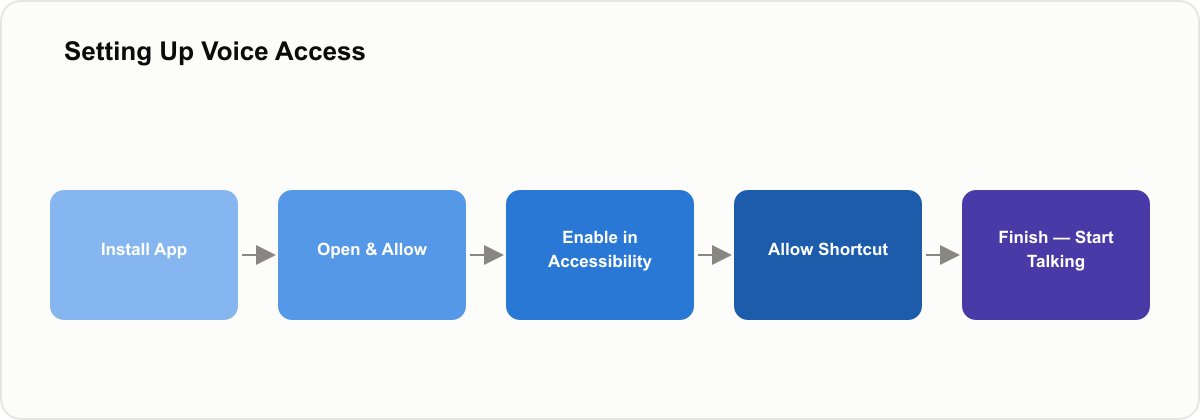
Step 2 — Set It Up
- Open the Voice Access app once it's installed
- Tap through the permission screens and confirm OK
- Go to your phone's downloaded/enabled apps in Accessibility settings and turn on Voice Access
- Tap the shortcut option and choose Allow
- Tap Finish — setup is complete
From here, your phone is listening for the Voice Access shortcut. Trigger it, and start giving commands out loud.
Commands Worth Trying First
- "Open [app name]" — launches any app on your phone
- "Go home" / "Go back" — basic navigation
- "Scroll down" / "Scroll up" — move through a page without touching it
- "Show numbers" — labels every tappable item on screen with a number, so you can say the number to tap it
- "Click [item name]" — taps a specific button or link by name
If Something's Not Working
- Make sure microphone permission is granted to Voice Access in your phone's app permissions
- Speak clearly and pause briefly between commands — it works best with short, direct phrases
- If commands aren't recognized, say "Show numbers" to see exactly what's tappable on the current screen
- Voice Access can be turned off anytime from the same Accessibility settings menu where you enabled it
Questions People Ask
Give It a Try
Install it, run through the two-minute setup above, and try a few basic commands. It's one of those features that feels unnecessary until the first time your hands are full and your phone still does exactly what you say.
Frequently Asked Questions
Advertisement
Recommended Products & Links
Was this article helpful?
Advertisement
Comments
No comments yet. Be the first to share your thoughts!
Related Posts

Best Budget Smartphones Under ₹15,000 in 2026 — Complete Buying Guide
Redmi Note 13 vs Realme Narzo 70 vs Samsung Galaxy A15, compared on what actually matters
We compared the Redmi Note 13, Realme Narzo 70, and Samsung Galaxy A15 on display, camera, battery, and software support — here's the full breakdown and our final pick.

What is Artificial Intelligence — Simple Explanation for Beginners
What is AI and how does it work? A simple, jargon-free explanation of artificial intelligence, machine learning, and how AI is changing everyday life in India.

Best Free AI Tools That Will Save You 10 Hours Every Week
These free AI tools will save you hours every week. From writing to design to coding — the best AI tools available free in 2024.

Time Blocking: A Step-by-Step Guide to Scheduling Your Day Around Real Priorities
Why a written schedule holds up where a to-do list doesn't, and how to build one
Time blocking assigns every task a slot on your calendar instead of a vague list. A step-by-step method for building a schedule that survives a real workday.